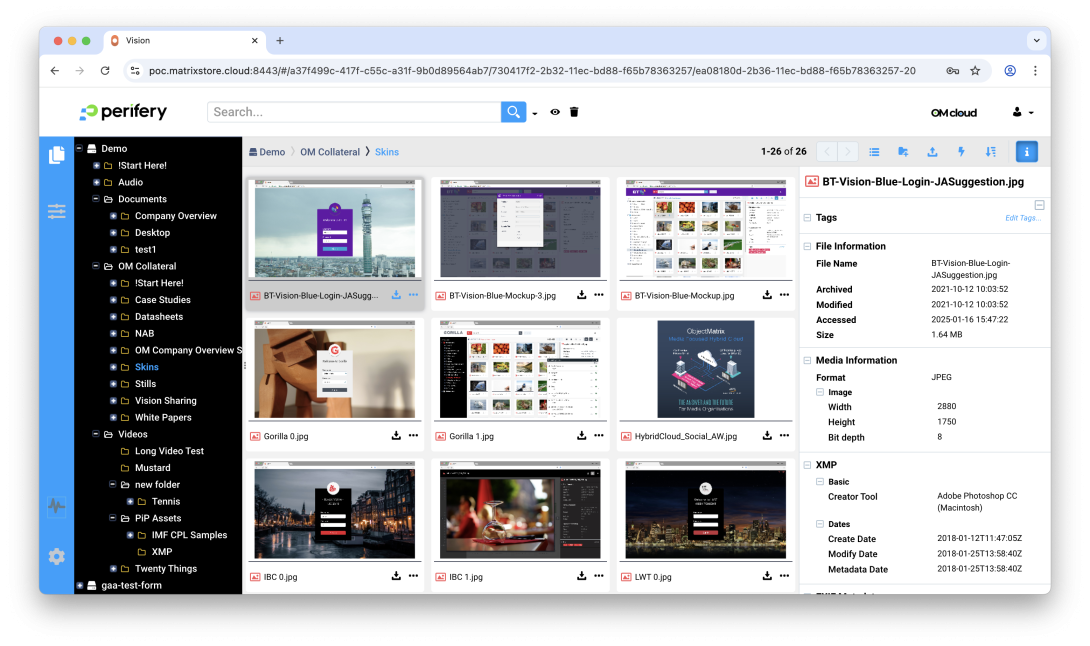
Searching in Vision goes beyond filenames. Here’s a quick guide on how to leverage expert queries to find files based on their archive or modification dates.
The Search Bar
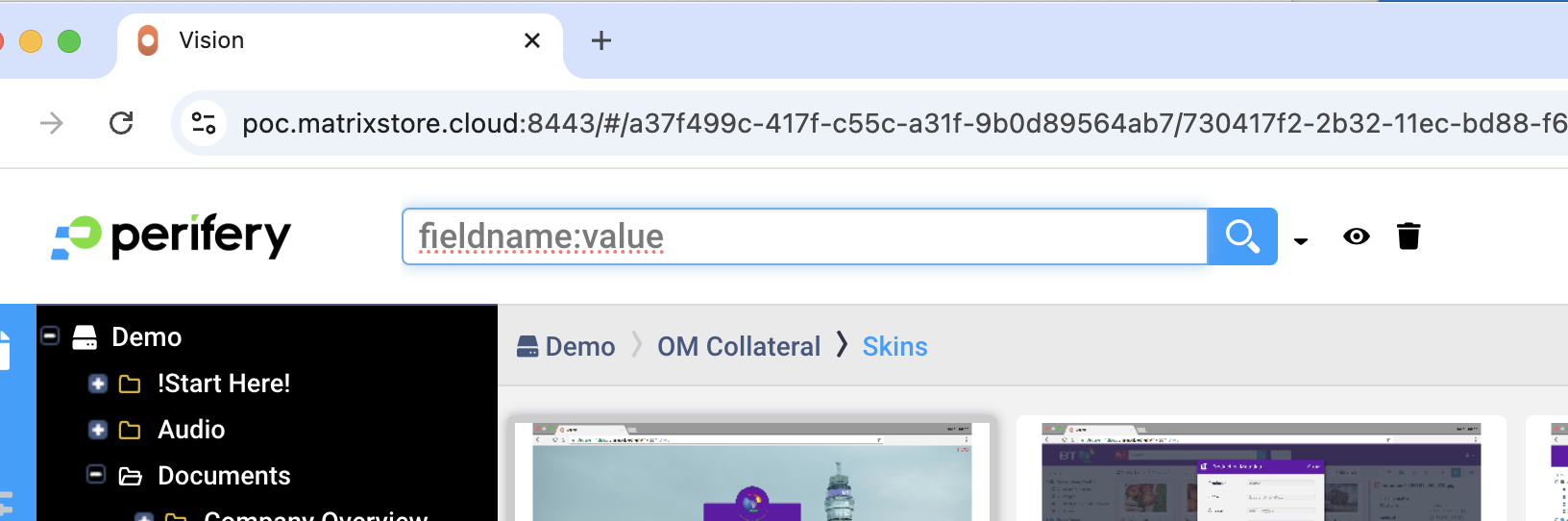
The Vision search bar is a powerful tool. By default, it runs a simple, case-insensitive search across object filenames, tags, and other metadata fields. To search specific fields, you need to use an expert query with the fieldname:value syntax.
Expert Query for Dates
To find all files archived or modified in the last month, we can use the following expert query syntax:
archived:[<start_date> TO <end_date>] OR modified:[<start_date> TO <end_date>]
archived: This is an alias for the_mxs_archiveTimeattribute, which stores the date the object was written to the vault.modified: This is an alias for the_mxs_modifiedTimeattribute.[...]: Square brackets indicate a range search.TO: This keyword is used to specify the range between two values.OR: This is a Boolean operator that allows you to find objects that match either thearchivedor themodifiedcondition.
Constructing the Query for the Last Month
To search for files from the last full month, you can specify the year and month. For example, to find all objects archived or modified in August 2025, you would use:
archived:2025-08 OR modified:2025-08
If you want to be more specific and find all objects in a given range, such as from August 5, 2025, to September 5, 2025, the query would be:
archived:[2025-08-05 TO 2025-09-05] OR modified:[2025-08-05 TO 2025-09-05]
The format for date ranges is YYYY-MM-DD. For an open-ended search, you can use an asterisk (*) to represent positive infinity.
Putting it into practice
- Navigate to the vault you want to search.
- Type your expert query into the search bar.
- Press the return key or click the magnifying glass.
The results will be displayed in the Results View. This powerful search method helps you efficiently locate files, and it's a great example of how object storage can transform media workflows.